
How to Translate a Whole WordPress Site with AI and Polylang
Running a WordPress site in five languages by hand goes about the same way every time. A post gets published, sent off for translation, and comes back a week later as a document that somebody has to paste into the editor paragraph by paragraph, rebuilding whatever layout broke on the way. Multiply that by every page, every product and every custom field, and most sites quietly stop after the second language.
Gato AI Translations for Polylang removes that middle part. It hooks into Polylang, sends content to the AI service of your choice using your own API key, and writes the translated version straight back into WordPress. Posts, pages, custom post types, taxonomies, media, menus, user descriptions and meta fields are all covered, along with the page builders and plugins most sites are already running.
The best part is that it can be left alone. Translations start on their own the moment content is published, and when a different schedule suits better, Bulk Actions is right there. Either way the connected pieces come along too, so tags, categories and featured images point at their translated counterparts instead of the originals.
Here is what the setup looks like in practice.
Getting The Plugin Ready
The plugin sits on top of Polylang, so that needs to be installed and active, with the languages already defined. Polylang is what creates and links the per-language versions of each post; the AI plugin is what fills them in.
Head to Polylang’s Languages page and add whichever languages the site is targeting. Spanish, French and German are a common starting trio. Whatever is listed here is what gets translated.
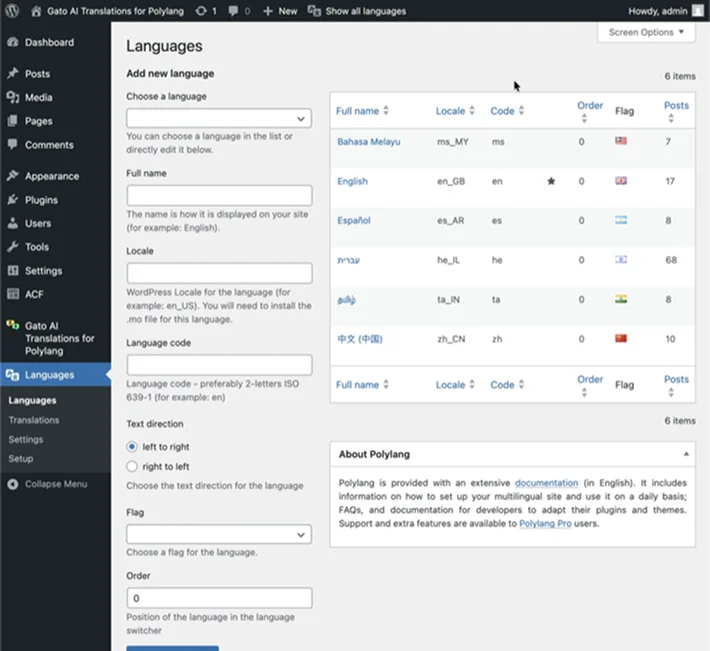
Set the languages in Polylang first. This list drives everything that follows.
Then go to Gato AI Translations for Polylang > Settings, pick a provider, and paste in the API key. There is no lock-in to a single vendor: ChatGPT, Claude, Gemini, DeepL, Google Translate and OpenRouter are all supported, so it can be whoever the site already has an account with, or whoever is cheapest for the language pair that matters.
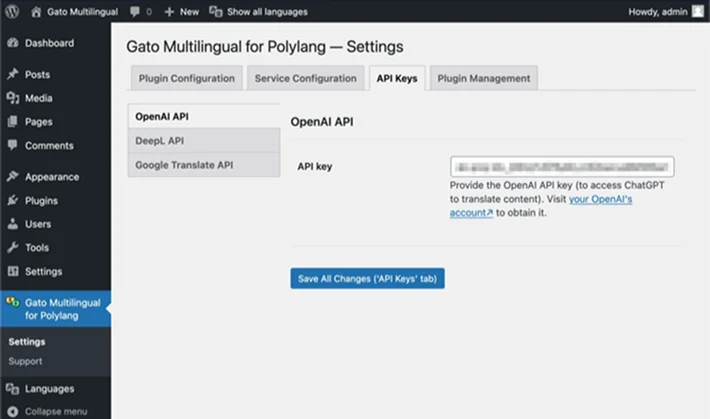
Choose the AI provider and drop in the API key. That is the whole setup.
That is genuinely it for configuration. Everything from here on is about triggering translations.
Letting It Run On Autopilot
This is the part with nothing to do. Automatic translation is on out of the box, so the first time a post is published in the default language, the translated versions appear without anyone lifting a finger.
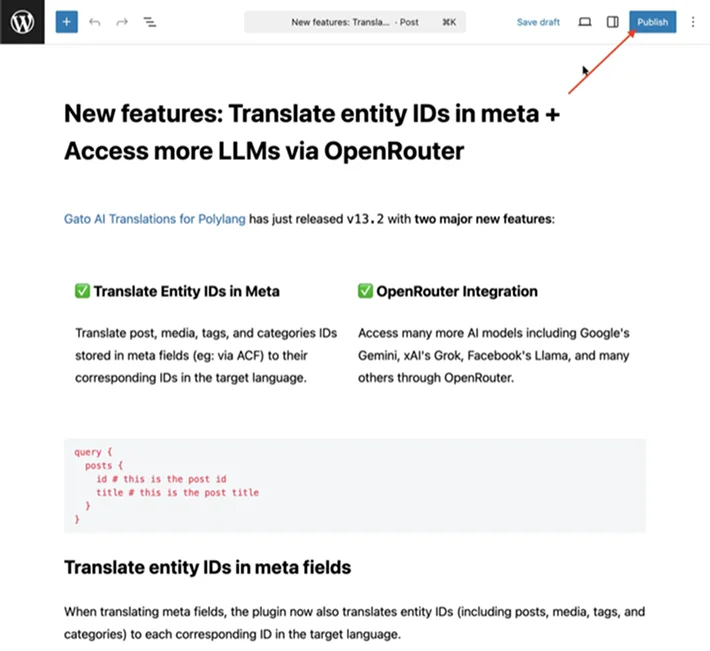
Hit Publish and the translations start on their own.
Catching Up On Everything Already Published
New posts are the easy case. The real question is usually the 300 posts already sitting in the archive, and that is what Bulk Actions is for.
Open Posts (or Pages, or any custom post type list), tick the items to translate, pick Gato Translate from the Bulk Actions dropdown, and click Apply. Working in batches rather than selecting the entire archive at once is worth the extra minute, since it leaves room to spot-check the output before committing to the whole thing.
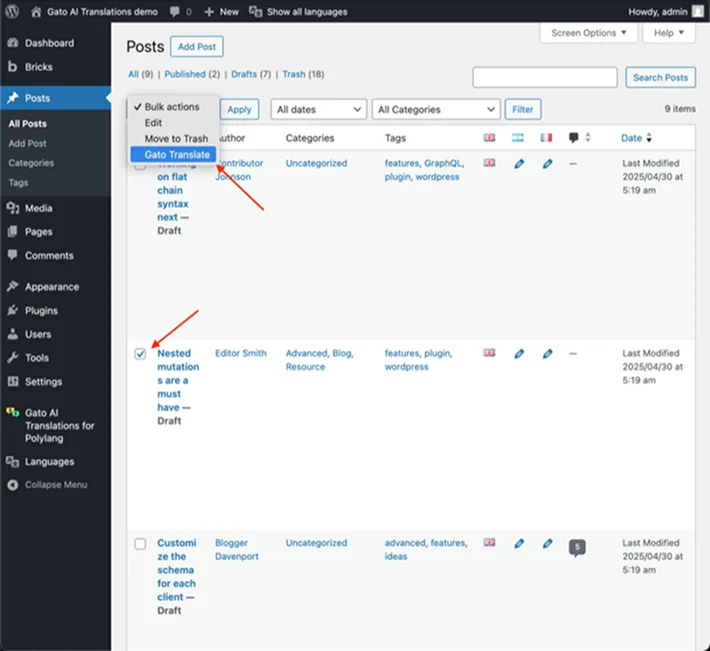
Select what you need and run Gato Translate from Bulk Actions.
What About Custom Post Types?
Almost every real site has them. The theme registers a portfolio, an events plugin registers events, a testimonials plugin registers testimonials. They are translatable too, they just need to be switched on first.
In Polylang, go to Languages > Settings, open Custom post types and Taxonomies, and enable the post type (plus any taxonomies attached to it) that should be translated.
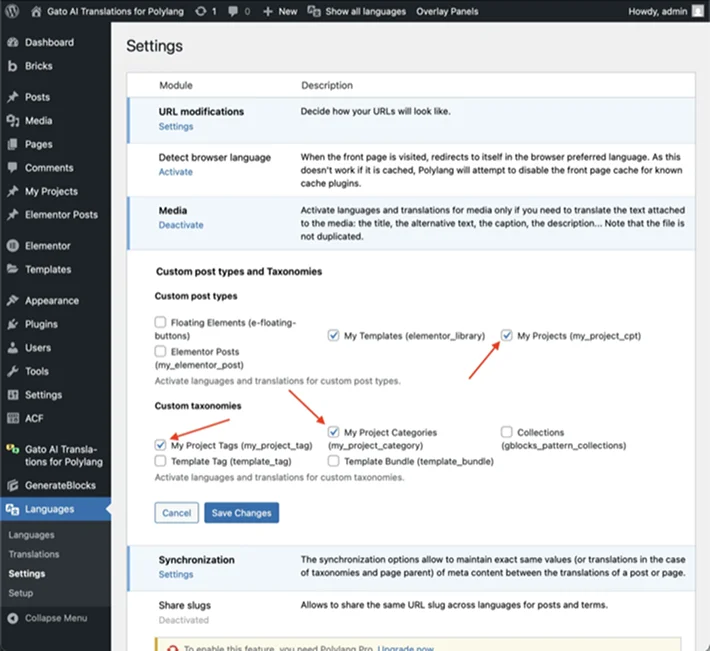
Tell Polylang which custom post types and taxonomies are translatable.
There is one wrinkle worth knowing about. If the post type is created through wp_insert_post, turn on Automatic creation of translation entries for it in the plugin’s Settings page, and the translated entries get spun up automatically.
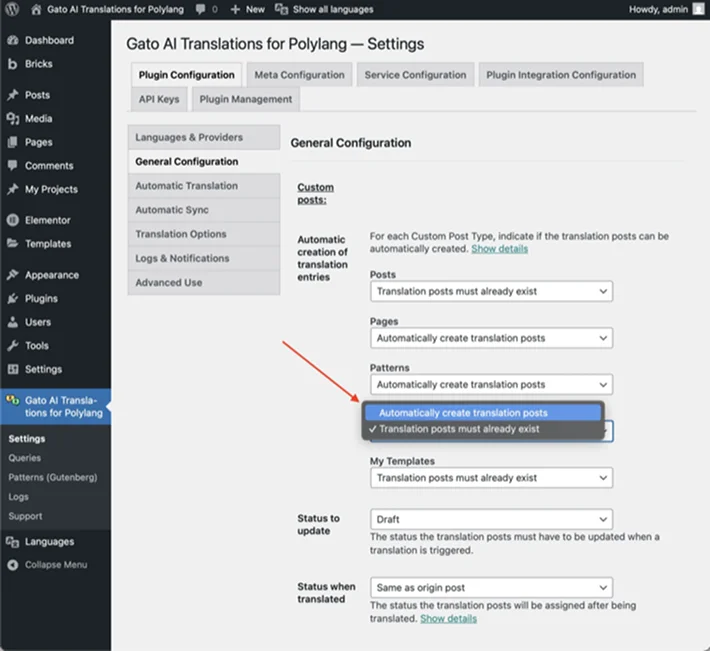
Enable automatic creation of translation entries for CPTs built via wp_insert_post.
After that, nothing changes: publish for an automatic translation, or select the entries in the list and run Gato Translate from Bulk Actions, exactly like a regular post.
Classic Editor, Block Editor, Or Both
The plugin does not need to be told which editor is in play. It works out on its own which editor powers each post type and handles it accordingly, so a site that still runs the Classic Editor for one CPT and Gutenberg for everything else is fine.
With the Block Editor, the plugin walks the block structure and only touches the text inside each block: paragraphs, headings, button labels, image alt text and captions, lists, quotes and so on.
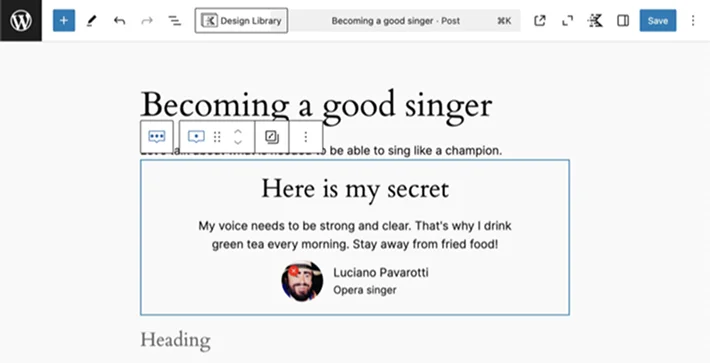
A Gutenberg post with a custom testimonial block.
The blocks themselves are left alone, so what comes out the other side is the same page with different words in it.
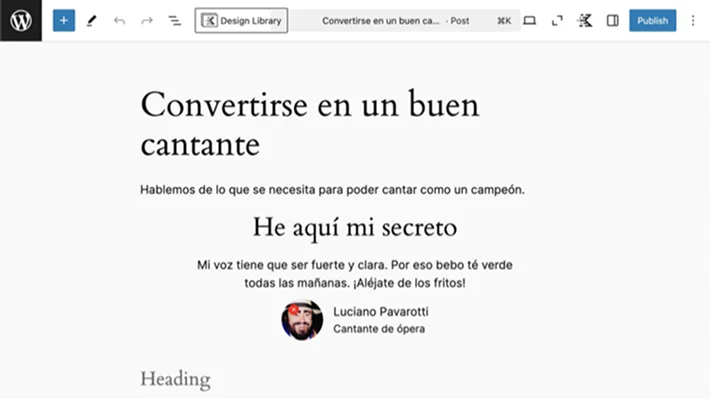
The same block after translation. The layout has not moved.
With the Classic Editor there is no block structure to read, since the body is a single lump of HTML. In that case the plugin sends the HTML off and swaps in the translated version it gets back.
Elementor Pages
For sites built with Elementor, this works with no setup at all. The plugin already knows which post types Elementor is responsible for, because it reads that from Elementor’s own configuration.
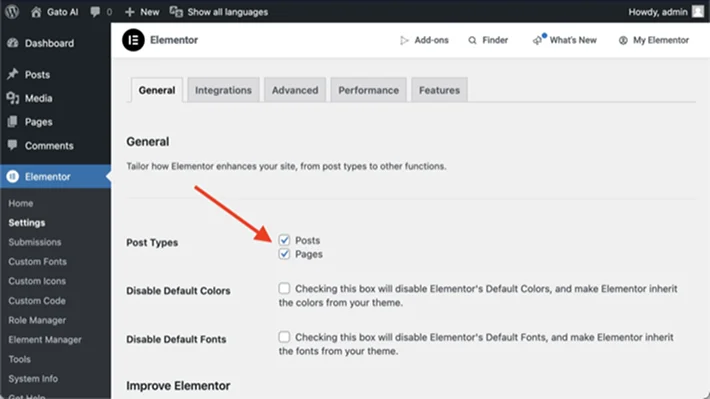
Any post type is fair game, Elementor-powered ones included.
What gets translated is the text inside the widgets: headings, buttons, icon boxes, testimonials, form labels and the rest. The design, spacing and responsive settings are untouched, which is the thing that actually worries people about letting software near an Elementor layout.
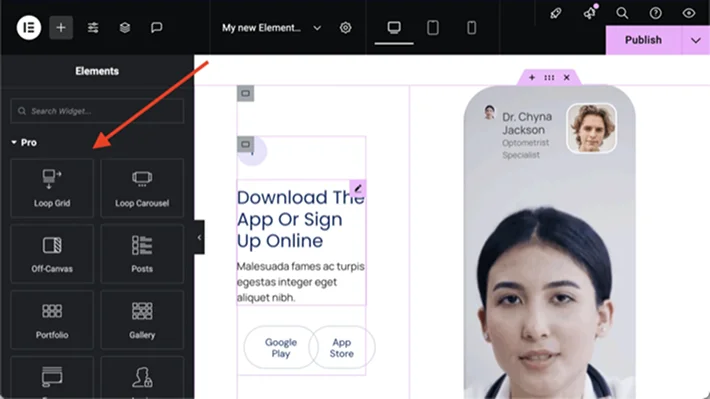
The Elementor widgets the plugin knows how to translate.
Triggering it is the same two options as always: publish and let it run, or select the pages and use Gato Translate in Bulk Actions.
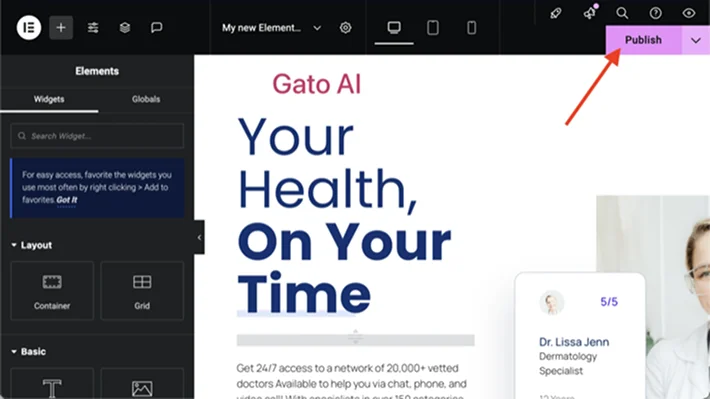
Publishing an Elementor page kicks off its translations.
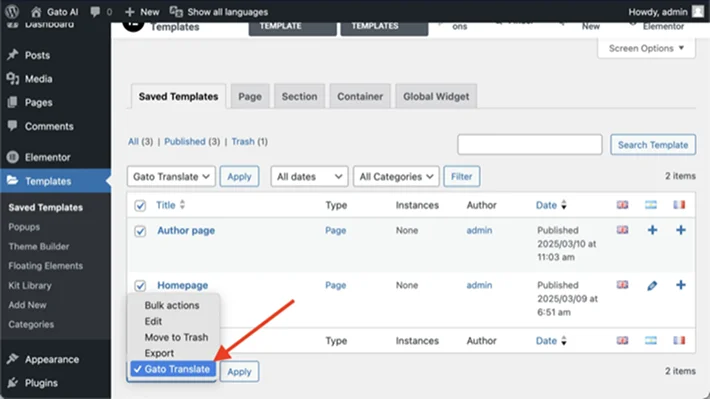
Or translate a batch of Elementor pages at once.
Bricks Layouts
Bricks gets the same native treatment: pages, templates and any other Bricks-powered post type. Again the plugin reads Bricks’ own configuration to figure out what is built with it, so there is nothing to wire up manually.
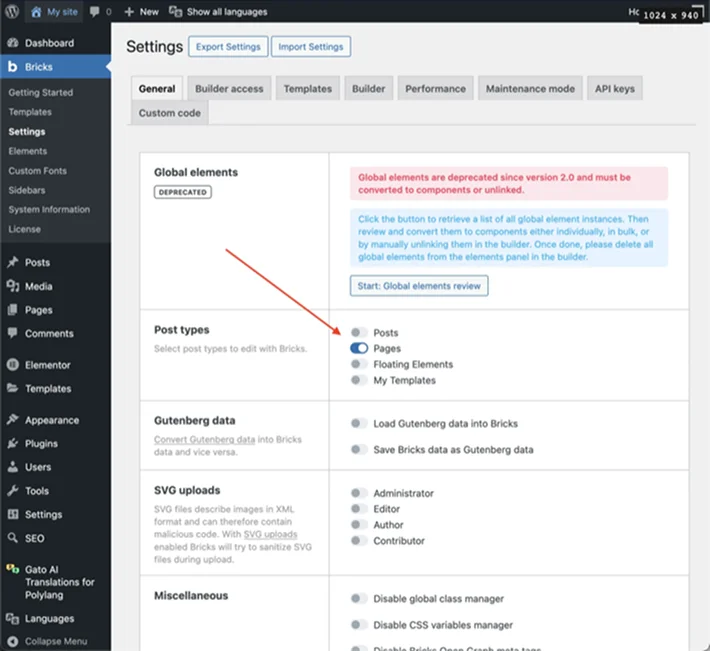
The Bricks post types picked up in settings.
Only the text inside Bricks elements is sent for translation: headings, text blocks, buttons, accordions, tabs, forms, sliders and so on. Structure, styling and responsive settings stay exactly as they were.
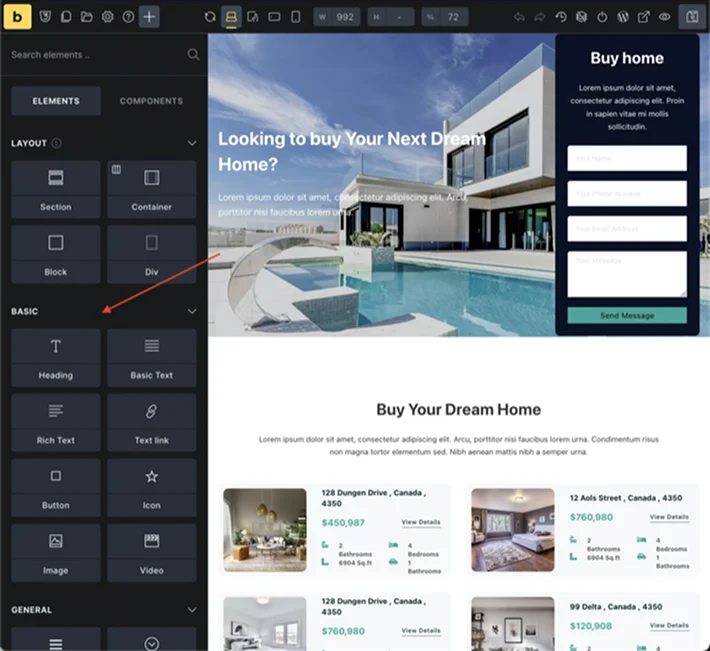
The Bricks elements are supported for translation.
And the workflow does not change: publish, or select and run Gato Translate from Bulk Actions.
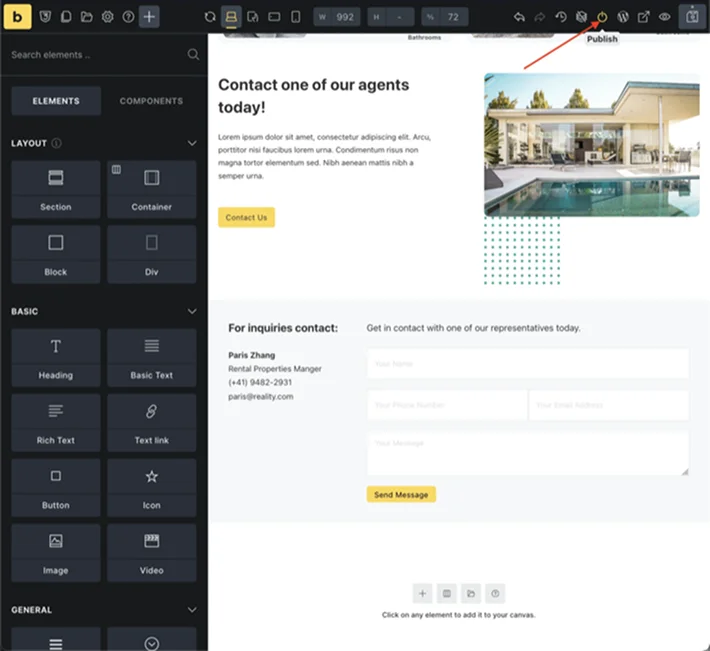
Automatic translation when a Bricks page is published.
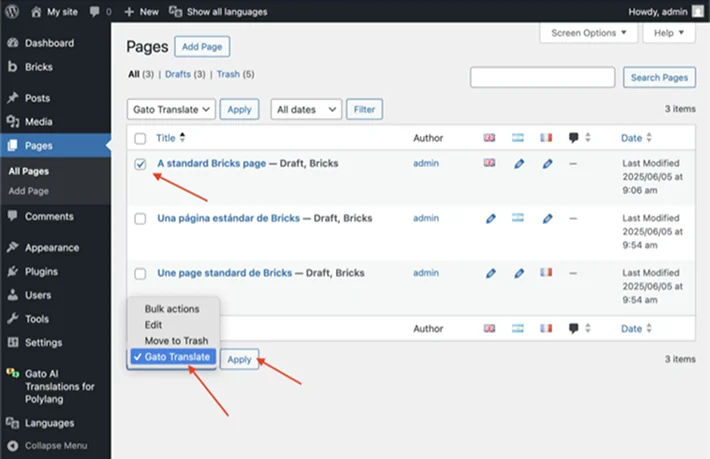
Bulk translation for Bricks content.
Do Not Forget The SEO Metadata
This is the step that gets skipped, and then the translated pages never rank and nobody knows why. Titles and meta descriptions live in the SEO plugin, not in the post body, so they need translating too.
The plugin ships with built-in support for the usual suspects:
- All in One SEO
- Rank Math
- SEO Simple Pack
- SEOPress
- Slim SEO
- The SEO Framework
- WP Meta SEO
- Yoast SEO
These integrations are already enabled under Plugin Integration Configuration in Settings, so any site running one of them is covered without doing anything.
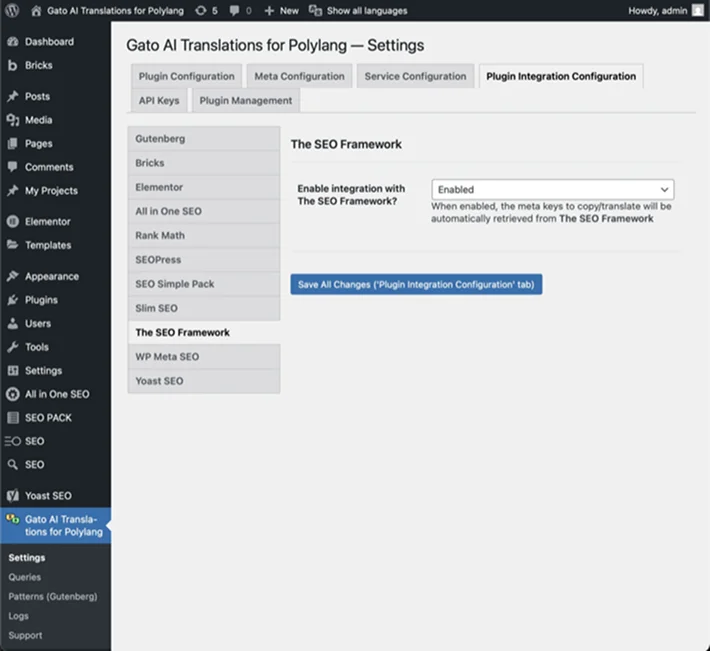
Turn individual SEO plugin integrations on or off in settings.
For something more bespoke, Settings > Meta Configuration takes the meta keys directly, along with whether each one should be copied across, translated, or treated as a reference to another entity.
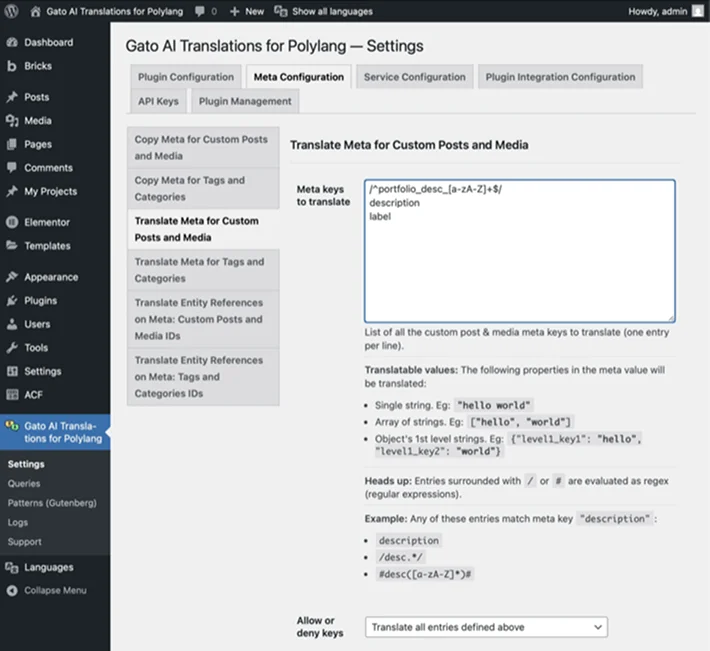
Decide per meta key whether it is copied, translated, or resolved as an entity reference.
Custom Fields With ACF
On sites built around Advanced Custom Fields (or ACF PRO), those fields are handled as well.
One thing to sort out first on Polylang PRO: set ACF’s Polylang translation option to Ignore. Otherwise both plugins are trying to manage the same fields, and Gato Translate should be the one in charge.
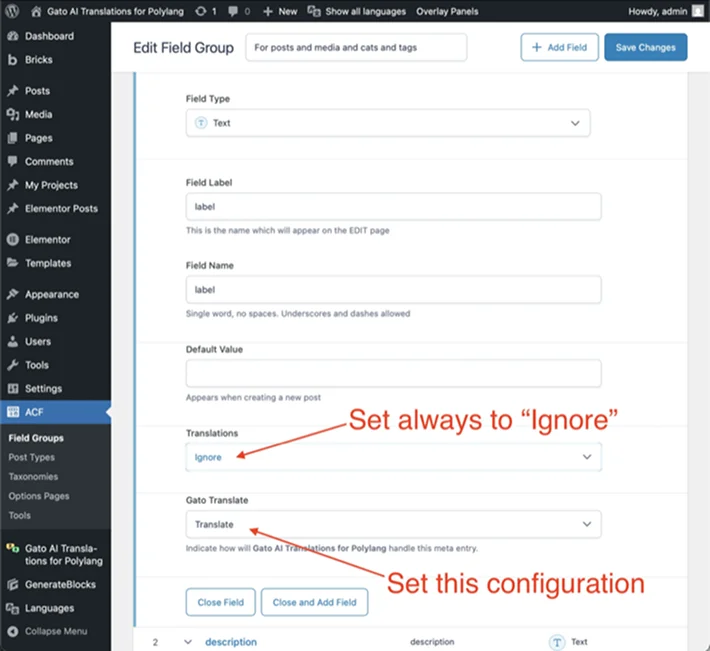
On Polylang PRO, set ACF fields to Ignore and let Gato Translate handle them.
Inside every ACF field group there is now a Gato Translate section, and this is where the fine-grained control lives. Field by field, the options are Sync (copy the value as-is), Translate (run the text through the AI), or Translate entity references (swap a post, term or media ID for its translated equivalent). A phone number gets synced. A tagline gets translated. A related-post field gets repointed at the translated post. That distinction matters more than it sounds.
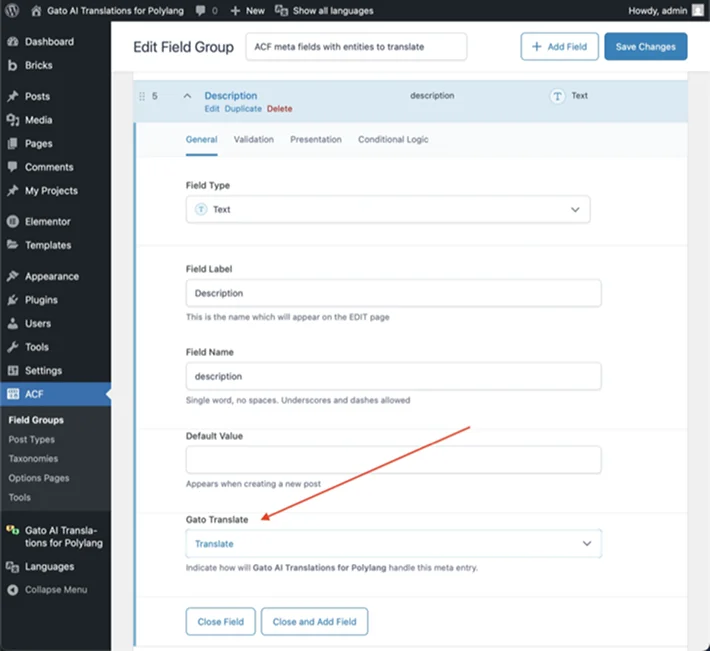
Set the behavior per field inside the ACF field group.
Once that is configured, editing carries on as normal: fill in the ACF fields in the source language, whether they are text, links, images or relationships.
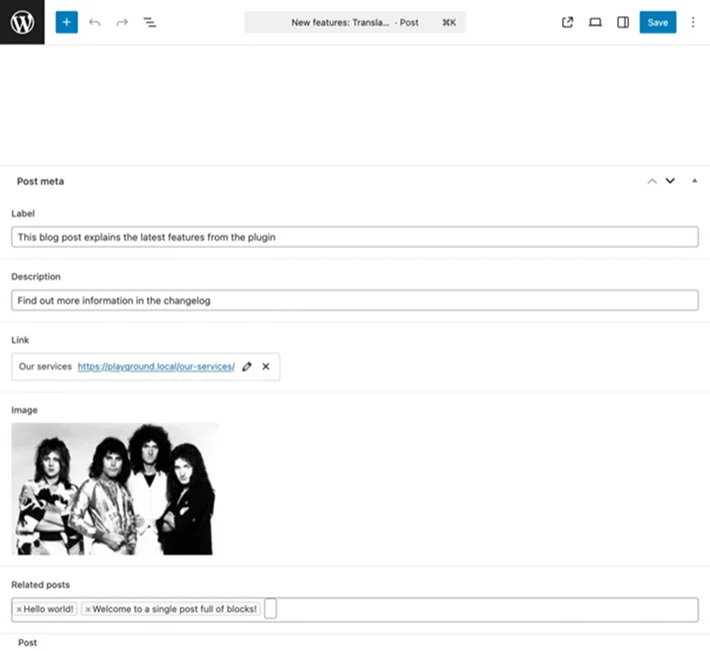
advanced field translation settings
The source post with its ACF fields filled in.
The translated post then comes out with all of that meta in place, each field copied or translated according to the rules that were set.
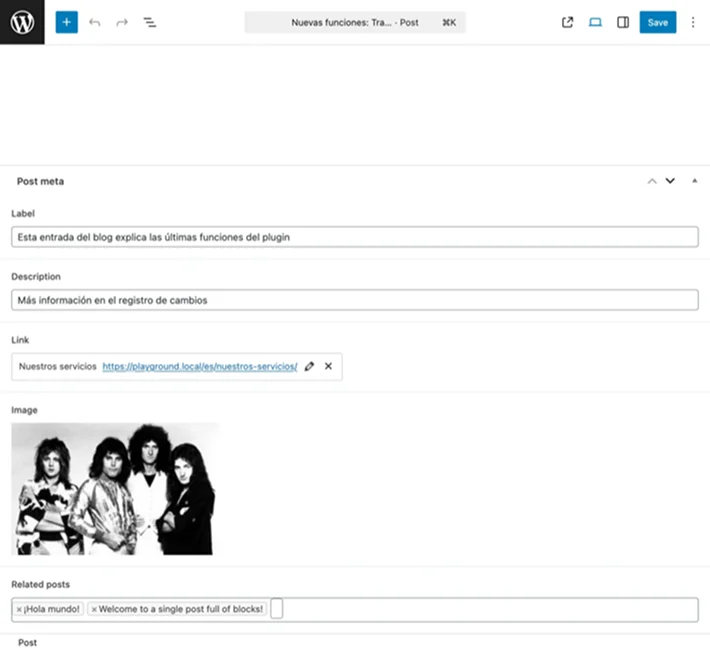
The translated post, with its ACF meta synced and translated.
Custom Fields With Meta Box
Meta Box users get the same deal. Custom fields built with it are translated out of the box.
The same caveat applies on Polylang PRO: turn off Polylang’s own translation for the Meta Box field groups so Gato Translate is the only one touching them.
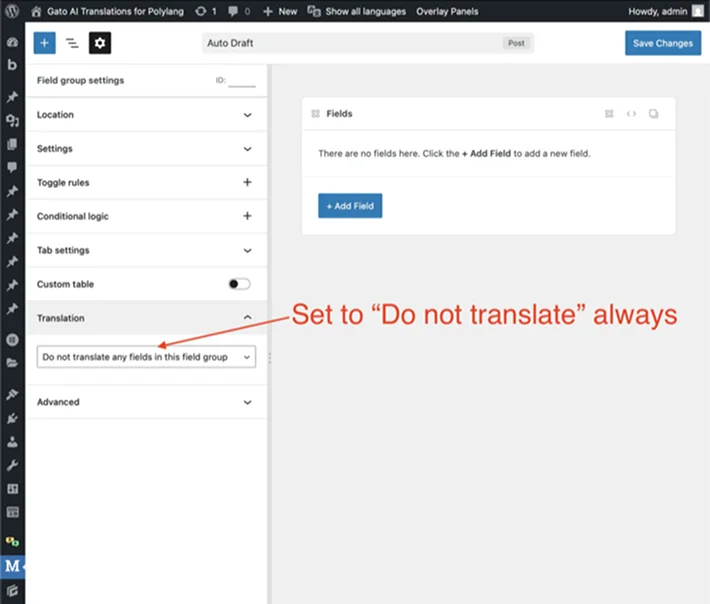
Stop Polylang from translating Meta Box fields.
Then configure the sync or translate behavior per Meta Box field, exactly as with ACF.
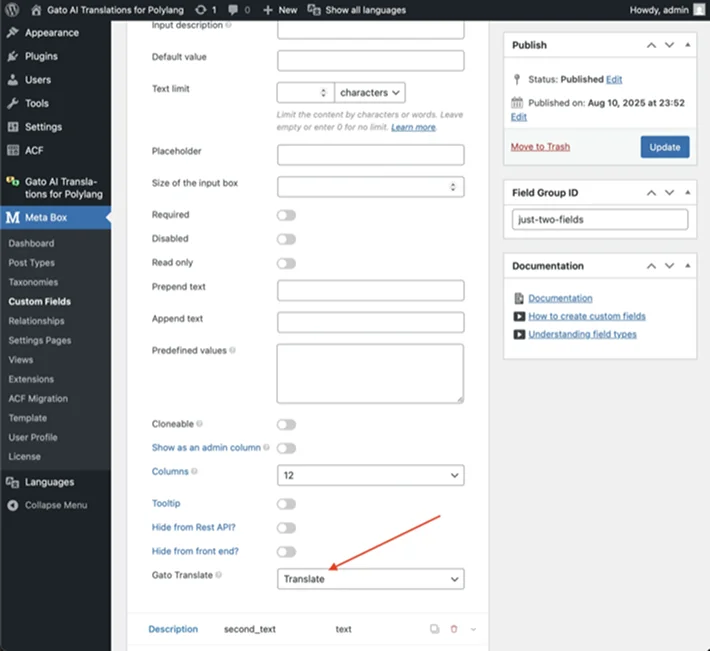
Per-field configuration for a Meta Box field group.
Translations then carry that meta across the same way ACF meta does.
Wrapping Up
Going multilingual used to be a project. Now it is a plugin, an API key, and a few minutes deciding which custom fields should be translated rather than copied.
Gato AI Translations for Polylang covers posts, pages, custom post types, taxonomies, media, menus, user descriptions and meta fields, plus Elementor, Bricks, ACF, Meta Box and eight SEO plugins. Add the API key, publish something, and the other languages fill themselves in.
Also check out the comprehensive guide to multilingual translation for WordPress websites. It walks through the whole process step by step, so nothing on the site gets left behind in the original language.
Related Articles:
- 7 Best WooCommerce Reporting Plugins in 2026
- The Ultimate List of Amazon Affiliate WordPress plugins 2026
- What High-Traffic WordPress Sites Need From Managed Hosting
Frequently Asked Questions
Is Polylang Pro required, or is the free version enough?
The free version of Polylang is enough to get everything in this guide working. Polylang Pro adds translated URL slugs (so a French page can live at /fr/tarifs/ instead of reusing the English slug) and the ability to share a slug across languages. The one thing to remember on Pro is the step mentioned earlier: set its ACF and Meta Box translation options to Ignore, so the two plugins are not both trying to manage the same custom fields.
What does it cost to run?
The AI bill goes straight to the provider, at whatever that provider charges, with nothing added on top. In practice that lands around $0.02 per 1,500 words, so translating a 100,000-word site into another language costs somewhere near $1.50 in API fees. The plugin itself is a paid license starting at $79/year for a single site, with a 30-day money-back guarantee and a sandbox for testing beforehand.
Which AI provider gives the best translations?
The modern language models (ChatGPT, Claude, Gemini, DeepSeek, Mistral) are noticeably better than legacy machine translation, because they follow context, tone and HTML structure rather than swapping words. DeepL and Google Translate are supported too and remain solid for straightforward content. A different provider can be configured per language, which is handy when one model is clearly stronger for a particular language pair.
Will translation break an Elementor or Bricks layout?
No. Only the text strings inside widgets and elements are sent to the AI, so the structure, styling and responsive settings are never part of the payload and come back exactly as they were. The same applies to Gutenberg blocks, where the block markup is preserved and only the text inside it changes.
Can a translation be edited by hand afterwards?
Yes. Every translation is a normal WordPress post, so it can be opened in the editor and rewritten like anything else. Published translations are not overwritten by later runs, which keeps manual edits safe. When a translation does need refreshing after the source changes, the Gato Translate (Custom) bulk action allows setting which post statuses may be updated.
What happens if a translation fails partway through a bulk run?
Every attempt is logged, and failures are flagged in the wp-admin list views. The content list can be filtered down to the failed entries so they can be re-run individually or as a batch, without spending API credits again on everything that has already been translated successfully.
One response to “How to Translate a Whole WordPress Site with AI and Polylang”
Leave a Reply
You must be logged in to post a comment.
[…] most WordPress sites, Darkify is the one to try first. It covers the front end, the dashboard and both editors for free, […]