
6 Best WordPress Dark Mode Plugins for 2026
Most people reading your site already made a choice about dark mode somewhere else. They set it on their phone, in Windows or in their browser, and every app that respects that setting follows it quietly. A site that ignores it stands out for the wrong reason at night.
Matching that preference no longer means maintaining a second stylesheet. Several plugins now generate a dark palette from what your theme renders, add a toggle, and remember what each visitor picked. This comparison covers six: what each free version includes, and where each runs out of road.
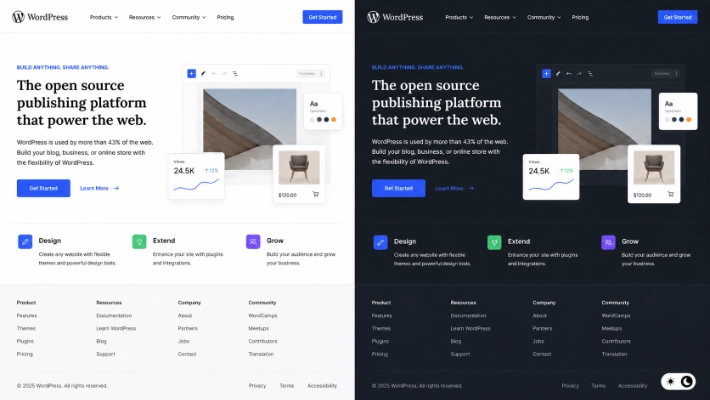
What to Look for in a WordPress Dark Mode Plugin
Start with switching. A WordPress dark mode plugin that reads the visitor’s system preference through the prefers-color-scheme media query matches what their device already asked for. Time-based scheduling is the alternative when you want the site dark in the evening regardless of device settings.
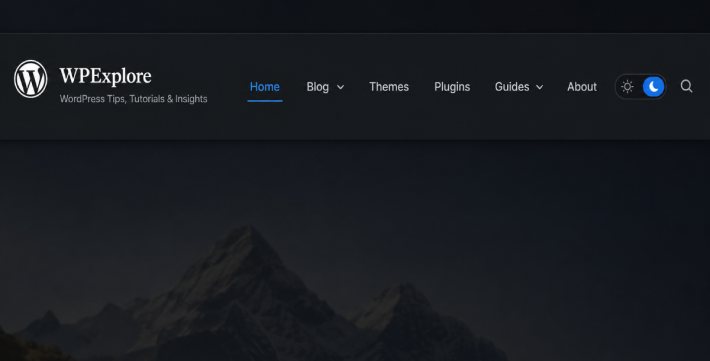
Toggle placement comes next. A floating button is the default everywhere, but a switch inside your navigation menu, a shortcode or a block looks less like an add-on.
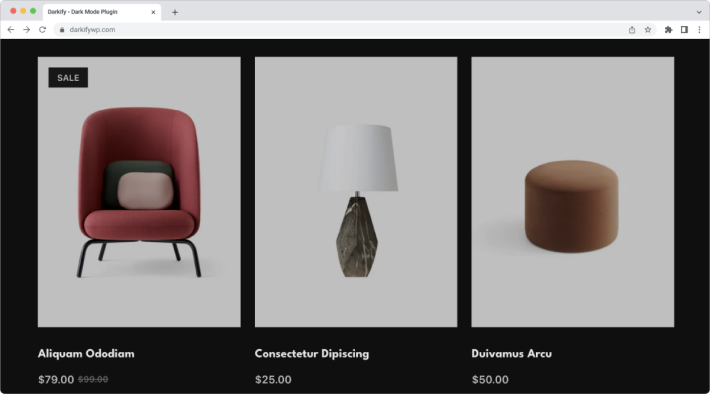
The media is where dark mode gets messy. Photos, logos and inline SVG icons carry their own colours, so check whether the WordPress dark mode plugin can dim, invert or replace them. Exclusion controls matter for the same reason: checkouts, galleries and brand-coloured sections often need to stay as designed.
Finally, check the contrast. Inverting a palette can push text and background closer together than WCAG’s minimum contrast guidance allows, so review the result rather than assuming it passes.
Quick Comparison: Best Dark Mode Plugins for WordPress in 2026
No time to read? No worries! Here are the best dark mode plugins for WordPress at a glance.
| Plugin | Free Version | Auto OS/Time Switching | Image Handling | Page Builder Support | Customization | Best For |
| Darkify | Yes | OS and scheduled | Brightness free, invert pro | Yes | 5 presets, 5 switch styles | Front end plus admin |
| Onyx | Yes, no pro tier | OS and scheduled | Invert, replace, grayscale | Yes | 13 presets, selector overrides | Most free features |
| Darklup | Yes | OS and scheduled | Brightness, contrast, sepia | Yes | 15+ switch styles | Accessibility tools |
| DarkMySite | Yes | OS and scheduled | Brightness, SVG invert | Yes | Presets free, colours pro | Free menu switch |
| Dark Reader | Yes | OS only | Pro only | Yes | Brightness and contrast | Reader controls |
| Dark Mode Toggle | Yes | Pro only | Not confirmed | Yes | Size, shape, position | Simple sites |
6 Best WordPress Dark Mode Plugins for 2026
All six are installable from WordPress.org today and were checked against their developers’ documentation. One familiar name is missing on purpose: WP Dark Mode has been closed on WordPress.org since 5 August 2026, pending review.
1. Darkify Dark Mode
Best for: front-end and admin dark mode from one free WordPress dark mode plugin
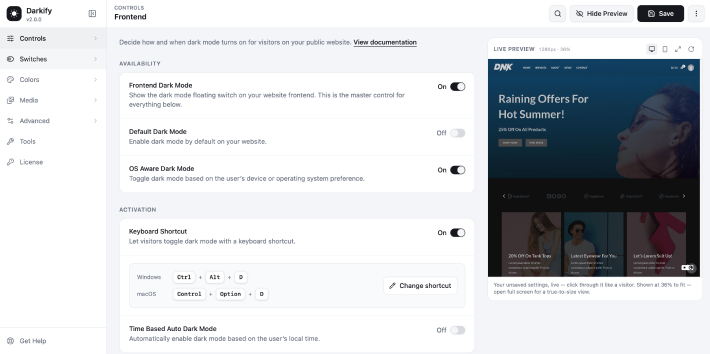
Darkify Dark Mode, from ThemeAtelier, covers more ground for free than most of this category. It handles the public site, the admin dashboard and both editors, each switched on independently, with system detection, scheduling, a default dark setting and a keyboard shortcut. The toggle can sit in a floating button, a navigation menu, a shortcode, a Gutenberg block or an Elementor widget, and the settings screen is a React app with a live preview. The catch: dark-mode custom CSS, element exclusions and image replacement are pro, so awkward layouts may need the upgrade.
Pros
- Front end, dashboard and both editors, free
- Five toggle placements, including menu and block
- Live preview beside the settings
Cons
- Exclusions and dark-mode custom CSS are pro
- Compatibility lists are developer-stated, not tested
2. Onyx Dark Mode Switcher
Best for: the most functionality without paying
Onyx, by HashThemes, is the newest WordPress dark mode plugin here and the most generous. Its documentation describes system-preference switching, scheduling on each visitor’s own clock, a menu switch, and the ability to turn any CSS selector into the toggle. Image replacement, SVG inversion, per-selector colour overrides, exclusions and custom CSS are all included, with no paid tier. The trade-off is track record: it reached the directory in January 2026 and has no reviews yet.
Pros
- Exclusions, custom CSS and image replacement, no paid tier
- Scheduling on the visitor’s local clock
- No third-party libraries or telemetry, per its docs
Cons
- Very new, with no user reviews yet
- No paid tier, so no priority support channel
3. Darklup
Best for: dark mode plus a visitor accessibility panel
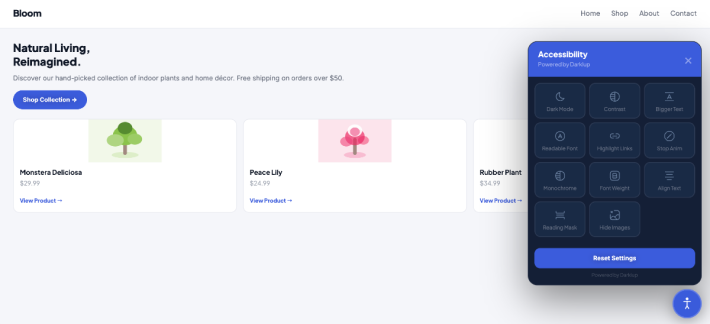
Darklup pairs a conventional dark mode with an accessibility toolbar added in version 4.0. From the same panel, visitors can adjust contrast, enlarge text, apply a readable font, highlight links and stop animations. The free tier also covers admin dark mode, OS and time-based switching, fifteen-plus switch styles, image brightness and caching exclusion. Control is where it tightens: the in-menu switch, shortcode, element exclusions and custom CSS are all pro.
Pros
- Accessibility toolbar with contrast and text-size controls
- Large selection of free switch styles
- Caching-exclusion option
Cons
- Menu switch, shortcode, exclusions and custom CSS are pro
- Needs WordPress 6.5 and PHP 7.4, above some hosts’ defaults
4. DarkMySite
Best for: menu and shortcode toggles without paying
DarkMySite puts most switching and placement options in the free tier: admin dark mode, system detection, scheduling, a menu switch, a shortcode, and image controls for brightness, grayscale and inline SVG inversion. Video controls are there too, unusual for free. Colour work is the wall: the developer’s FAQ says free users change background and text colours only, and exclusions are pro. Maintenance matters more, though. The listing was last updated in October 2025 and tested only to WordPress 6.8.
Pros
- Menu switch, shortcode and SVG inversion, free
- Video brightness and grayscale controls
- Working switch straight after activation
Cons
- Not updated since October 2025
- Free colours limited to background and text
5. Dark Reader
Best for: giving readers display controls, not just a switch
Dark Reader by BdThemes is a dark theme wordpress plugin that takes a filter-based approach. Alongside the palette change it exposes brightness, contrast, sepia and grayscale controls, plus a text stroke option and a softer dimmed mode. It follows the visitor’s system colour scheme, offers five or more toggle styles and a shortcode, handles embedded PDFs, and applies the mode immediately, avoiding a flash of light content. Scheduling, admin dark mode, image handling, exclusions and custom CSS sit behind pro, which leaves the free tier thin for a complex site.
Pros
- Reader-facing brightness and contrast controls
- Documented handling for embedded PDFs
- Settings export and import
Cons
- No scheduling, image handling or exclusions without pro
- Shares a name with an unrelated browser extension
6. Dark Mode Toggle
Best for: a minimal switch on a simple site
Dark Mode Toggle by ScriptsTown is the smallest option here and does not pretend otherwise. You get a sticky toggle, control over its position and shape, a transition effect, and persistence of the visitor’s choice. Elements are skipped by adding a dmt-filter-1 or dmt-filter-0 class, which suits anyone comfortable editing block classes. Settings sit in one screen under Appearance, and that is the whole WordPress dark mode plugin. The gaps are real: OS matching on load, admin dark mode and default dark mode are pro, and neither tier schedules.
Pros
- Small, simple and quick to configure
- Tested against the newest WordPress release
- Element exclusion by CSS class, no settings needed
Cons
- No OS matching or default dark mode for free
- No scheduling at any tier, no colour presets
How to Add Dark Mode to WordPress in About 5 Minutes
This walkthrough uses the free version of Darkify, which works with no configuration.
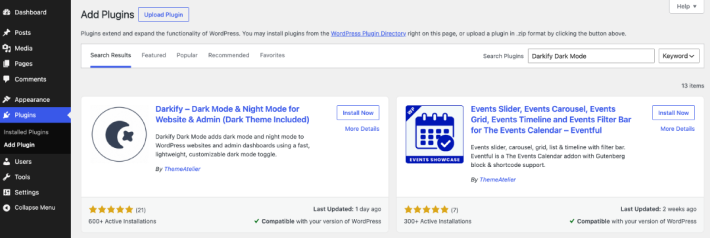
- Go to Plugins→ Add New, search for Darkify, then install and activate it, or upload the ZIP of the free Darkify plugin.
- Open the Darkify item in the admin menu.
- In Controls, turn on front-end dark mode. That alone gives a working toggle.
- Decide how dark mode starts. OS-aware follows each visitor’s system setting, time-based switches inside a window you set, and default dark mode opens the site dark for everyone.
- In Switches, pick the floating switch style and screen corner, or put the switch in a navigation menu.
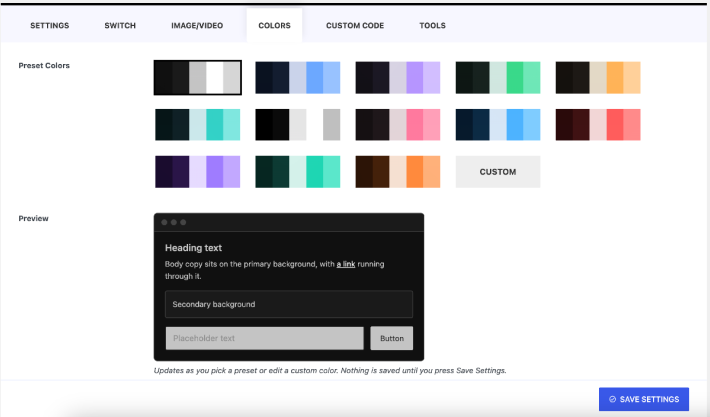
- Open Colors, choose a preset, and check it against your brand colours in the live preview. In Media, lower image brightness if photos look too bright.
- Save, then open the site in a private window and click through the homepage, one post, and any page with a logo, form or video.
People skip that last step. Automatic dark mode transforms whatever your theme outputs, and it fails in specific places: a white logo on a white card, a form field that loses its border.
Free vs Pro: What Do You Actually Need?
For a personal site, a blog, or a client site on a mainstream theme, a free version is usually enough. Every WordPress dark mode plugin here gives you a toggle, a dark palette and persistence at no cost, and most add system switching too.
Paid tiers mostly sell control. The features that consistently sit behind an upgrade are element, page and post exclusions, dark-mode-only custom CSS, image and video replacement, and extra toggle designs. Those matter once a site has brand-coloured sections, a WooCommerce checkout, or a logo that vanishes on a dark background. If you build for clients and need a specific palette rather than an acceptable one, budget for it.
Conclusion
For most WordPress sites, Darkify is the one to try first. It covers the front end, the dashboard and both editors for free, offers five ways to place the toggle, and previews changes as you work.
If your priority is exclusions and custom CSS without paying, Onyx is stronger, and Dark Mode Toggle is fine when all you want is a switch. Install one on a staging copy and click through your key pages first.
Related Articles:
- 9 Best WordPress Community Plugins in 2026
- WooCommerce Integration with ARPrice
- Top 10 WordPress Appointment Booking Plugins (2026)
FAQs
Does dark mode improve SEO?
There is no evidence that dark mode affects rankings directly. Google evaluates content and page experience signals, not colour scheme. Treat it as a design decision rather than an SEO tactic, and expect no ranking movement from installing a WordPress dark mode plugin.
Will a dark mode plugin slow down my WordPress site?
Every WordPress dark mode plugin adds CSS and JavaScript, so there is a cost. It is usually small here, but it depends on the plugin and how much of the page it recolours. Measure your own pages before and after installing it.
Can I add dark mode to WordPress without a plugin?
Yes. You can write dark styles inside a prefers-color-scheme media query, and many block themes ship colour variations already. The work is maintaining a second palette across every component, which is what these WordPress dark mode plugins automate.
Does dark mode work with Elementor and other page builders?
Most developers here list Elementor, Divi, WPBakery, Beaver Builder and Oxygen as supported, and several add an Elementor toggle widget. Because they recolour rendered output rather than the builder, test your own templates, especially sections with background images.
How do I make images look right in dark mode?
Start with brightness and grayscale, which soften photos against a dark background. Logos and line-art icons need inversion or a replacement file instead, since dimming a white logo does not help. Darkify’s documentation covers its media settings in detail.
Leave a Reply
You must be logged in to post a comment.