
7 Best WordPress Custom Login Page Tweaks That Lift Conversions
The default wp-login.php screen might be the most underrated conversion surface on a WordPress site. Membership sign-ups, course logins, subscriber portals, agency client hand-offs all funnel through the same plain white box with a tiny WordPress logo on top.
That logo links back to wordpress.org. Error messages read like server logs. The form has zero visual relationship to the site that brought the user there. Every one of those frictions costs sign-ups and trust.
Good news: a WordPress custom login page is one of the cheapest conversion wins on the table. Seven targeted tweaks, applied in an afternoon, regularly move return-login rates and membership activation by double digits. The list below is rough impact-to-effort order. Start at the top and stop wherever you run out of weekend.
Why The WordPress Login Page Deserves Conversion Attention
A custom login page is a branded replacement for the default wp-login.php screen. Same authentication, different visual layer. It’s the moment a user decides whether your site feels professional enough to hand over a password or a payment method.
For membership sites, e-commerce portals, LMS platforms, and pricing-table-driven funnels, that moment sits at the bottom of the funnel, not the top.
What makes this surface different from the rest of your site:
- Repeat exposure. Free trial users hit this page on day one and on every return visit. A weak first impression compounds.
- High intent. Anyone reaching the login page has already decided they want in. Friction here is conversion left on the table, not curiosity at the top of the funnel.
- Trust signal density. Logo, copy, form styling, and error tone collectively answer “is this site legit?” in under two seconds.
- Direct revenue link on membership sites. If they can’t log in, they cancel.
If you sell access (memberships, subscriptions, gated downloads, paid communities), the login page is part of the product. Treat it that way.
1. Replace The WordPress Logo With Your Brand
Single biggest perceived-trust upgrade in the list. Default WordPress puts an 84×84 px W logo at the top of the form, linking out to wordpress.org. Visitors who clicked through a polished landing page or a well-designed WordPress pricing table arrive at what looks like a different site. Brand discontinuity kills momentum.
Code Method
Drop this in your theme’s functions.php (or a custom plugin):
function custom_login_logo() {
echo ‘<style>
#login h1 a {
background-image: url(‘ . get_stylesheet_directory_uri() . ‘/images/login-logo.png) !important;
background-size: contain;
width: 240px;
height: 80px;
}
</style>’;
}
add_action(‘login_enqueue_scripts’, ‘custom_login_logo’);
function custom_login_logo_url() {
return home_url();
}
add_filter(‘login_headerurl’, ‘custom_login_logo_url’);
function custom_login_logo_url_title() {
return get_bloginfo(‘name’);
}
add_filter(‘login_headertext’, ‘custom_login_logo_url_title’);
That’s three filters in one snippet. It swaps the image, points the link back to your homepage instead of wordpress.org, and replaces the title attribute.
Common Issue
If the logo doesn’t appear, the usual culprit is a caching plugin holding the old CSS. Flush page cache and object cache, then hard-reload. The !important declaration is on purpose. WordPress core inlines its own background-image rule, and without the override your CSS loses the cascade fight.
2. Make The Background Match The Site, Not WordPress
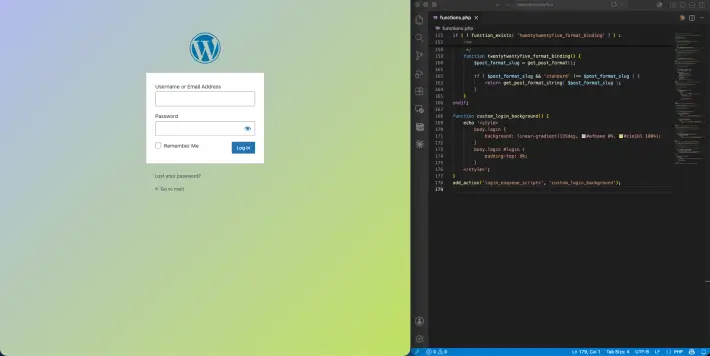
That default grey #f0f0f1 background is a tell. It instantly signals “WordPress admin,” which is exactly the opposite of what a customer-facing membership or download portal should feel like. A site-matching background (solid color, gradient, image, or slideshow) is table stakes for any checkout-adjacent screen, the same logic that drives most WooCommerce conversion extensions.
Code Method
function custom_login_background() {
echo ‘<style>
body.login {
background: linear-gradient(135deg, #afbaee 0%, #c1e161 100%);
}
body.login #login {
padding-top: 8%;
}
</style>’;
}
add_action(‘login_enqueue_scripts’, ‘custom_login_background’);
For an image background, swap the gradient for background: url(‘your-image.jpg’) no-repeat center center fixed; background-size: cover;. Keep the file under 200 KB. Login is a perceived-speed moment, not a hero-image moment.
Pro Tip
If you A/B test the rest of your funnel, test this too. Try a solid color vs. gradient vs. lifestyle image with the same form. Image backgrounds tend to win on emotional sites (yoga studios, coaching, lifestyle brands).
Solid colors win on B2B and SaaS. Don’t assume. Measure with whatever analytics you already have on wp-login.php.
3. Style The Form Itself
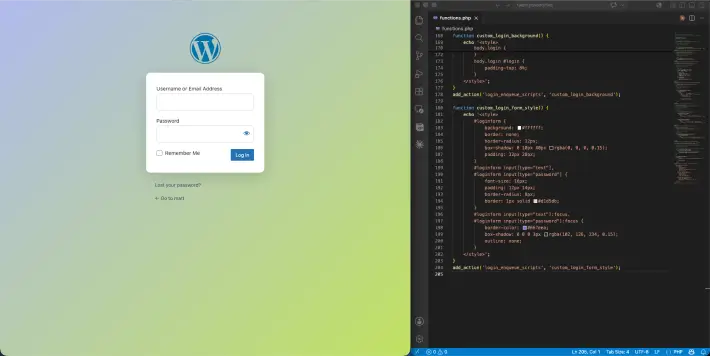
The form is what users actually interact with, and it’s the most-ignored part of the custom login page conversation. Worth changing:
- Border radius. Default square corners read as dated. 8–12px matches what most modern UI libraries ship.
- Box shadow. The default form is flat against the background. A soft shadow lifts it visually so the form reads as a discrete UI object.
- Field height and padding. Default inputs are cramped at 14px font-size with thin padding. Bumping to 16px font with 12px vertical padding improves mobile UX (16px stops iOS from zooming on focus) and looks more deliberate.
- Focus state. WordPress ships a faint blue outline. Replace it with a visible ring that matches your brand color.
Code Method
function custom_login_form_style() {
echo ‘<style>
#loginform {
background: #ffffff;
border: none;
border-radius: 12px;
box-shadow: 0 10px 40px rgba(0, 0, 0, 0.15);
padding: 32px 28px;
}
#loginform input[type=”text”],
#loginform input[type=”password”] {
font-size: 16px;
padding: 12px 14px;
border-radius: 8px;
border: 1px solid #d1d5db;
}
#loginform input[type=”text”]:focus,
#loginform input[type=”password”]:focus {
border-color: #667eea;
box-shadow: 0 0 0 3px rgba(102, 126, 234, 0.15);
outline: none;
}
</style>’;
}
add_action(‘login_enqueue_scripts’, ‘custom_login_form_style’);
The focus state matters more than people think. A visible focus ring tells the user “you’re in the right field” without them having to look down at the keyboard. Same psychological cue you get on any modern Stripe or Tailwind UI form.
4. Rewrite The Button Copy And Style
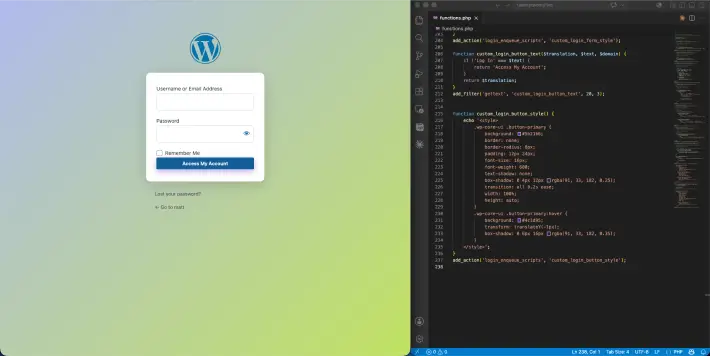
WordPress ships a button that says “Log In” in a flat blue rectangle. The copy is generic and the styling pre-dates every visual standard set in the last five years.
Copy first. For a membership site, “Access My Account” or “Continue to Dashboard” outperforms “Log In” because it speaks to the user’s reason for being there. Value, not mechanics. For a course platform, “Resume Learning” is even better. Login customizer plugins (covered later) let you change this without touching code. If you’re going the code route, use the gettext filter:
function custom_login_button_text($translation, $text, $domain) {
if (‘Log In’ === $text) {
return ‘Access My Account’;
}
return $translation;
}
add_filter(‘gettext’, ‘custom_login_button_text’, 20, 3);
Style second. Match it to the primary CTA button on your marketing site. Visual continuity from pricing page to login button is what makes the whole flow feel like one product instead of three duct-taped tools.
function custom_login_button_style() {
echo ‘<style>
.wp-core-ui .button-primary {
background: #5b21b6;
border: none;
border-radius: 8px;
padding: 12px 24px;
font-size: 16px;
font-weight: 600;
text-shadow: none;
box-shadow: 0 4px 12px rgba(91, 33, 182, 0.25);
transition: all 0.2s ease;
width: 100%;
height: auto;
}
.wp-core-ui .button-primary:hover {
background: #4c1d95;
transform: translateY(-1px);
box-shadow: 0 6px 16px rgba(91, 33, 182, 0.35);
}
</style>’;
}
add_action(‘login_enqueue_scripts’, ‘custom_login_button_style’);
5. Humanize The Error Messages
Default WordPress error messages tell users exactly what went wrong, which is both a security problem and a conversion problem. “Error: The username jsmith is not registered on this site” confirms which usernames exist on your site. Useful for attackers, demoralizing for legitimate users who can’t remember if they registered with their email or a handle.
Replace them with neutral, warm copy:
function custom_login_errors($error) {
global $errors;
if (empty($errors->errors)) return $error;
$err_codes = $errors->get_error_codes();
if (in_array(‘invalid_username’, $err_codes) || in_array(‘incorrect_password’, $err_codes)) {
return “Hmm, those credentials don’t match. Double-check or <a href='” . wp_lostpassword_url() . “‘>reset your password</a>.”;
}
return $error;
}
add_filter(‘login_errors’, ‘custom_login_errors’);
You get better UX plus a security improvement called “user enumeration prevention” that the WordPress security community has flagged for years. If your site sells gated content or runs a membership store similar to what you’d build with the best WordPress membership plugins, this one alone is worth doing tonight.
6. Add a Redirect That Feels Like an Onboarding Step
By default, WordPress sends every logged-in user to /wp-admin/. For a subscriber or member, that’s the wrong screen entirely. They don’t need the admin dashboard. They need their account, their course, their downloads, or their order history.
Role-based redirects fix it:
function custom_login_redirect($redirect_to, $request, $user) {
if (isset($user->roles) && is_array($user->roles)) {
if (in_array(‘subscriber’, $user->roles)) {
return home_url(‘/my-account/’);
}
if (in_array(‘customer’, $user->roles)) {
return home_url(‘/my-account/orders/’);
}
if (in_array(‘administrator’, $user->roles) || in_array(‘editor’, $user->roles)) {
return admin_url();
}
}
return $redirect_to;
}
add_filter(‘login_redirect’, ‘custom_login_redirect’, 10, 3);
Those destination URLs are placeholders. Swap them for whatever your site actually uses. The principle: every role gets dropped onto the screen that proves the value of logging in. For an e-commerce site, that’s the recent orders page. For a course platform, that’s the last lesson the student was on.
For a download portal of the kind you might build alongside password-protected WordPress downloads, that’s the file library.
7. ChangeThe Login URL Entirely
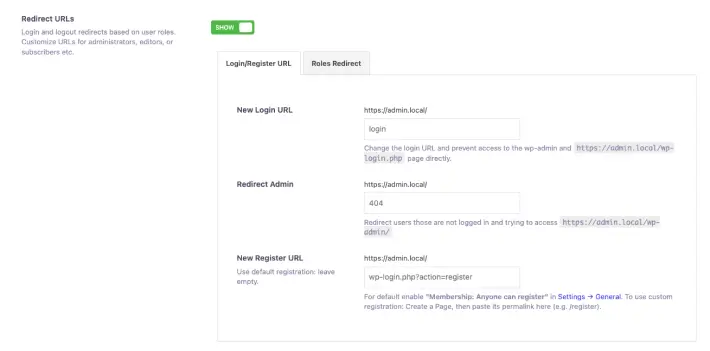
This one is structural, not visual. /wp-login.php and /wp-admin are the two most-attacked URLs on the WordPress internet. Changing them to something else (/portal, /members, /sign-in) cuts brute-force traffic by an order of magnitude and makes the URL itself feel branded.
Risky to do via raw code, since locking yourself out means editing the database to recover. Use a plugin instead. WP Adminify is the long-running option, and most full-featured login customizer plugins include it as a checkbox setting.
Common Issue
If you change the login URL and a membership plugin keeps redirecting users to /wp-login.php, the plugin is hard-coding the URL instead of using wp_login_url(). Open a support ticket. That’s a bug, not a feature.
Skip The Code: Loginfy As The Plugin Shortcut
Every tweak above can be done in functions.php. The code samples are deliberate. They’re what you’d write if you wanted full control. For most site owners, though, the time-to-result ratio doesn’t justify the maintenance overhead. A login customizer plugin gets all seven tweaks live in under thirty minutes, with a live preview while you work.
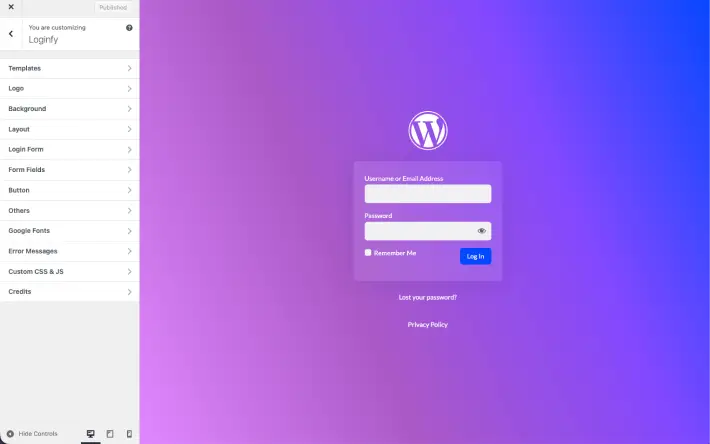
Loginfy is the cleanest option in this category right now. It hooks into the WordPress Customizer (Loginfy > Customize), so you see every change in real time on a preview of the actual login page. No save-and-refresh cycle. The free version on WordPress.org covers:
- 16+ pre-built templates as starting points (not just one default layout)
- Background customization across solid colors, gradients, images, and slideshows
- Logo, form, button, and field styling at the same granularity as the code examples above
- Two-column layouts with the form positioned in any of nine locations on the page
- Editable error messages, toggleable “Remember Me,” “Lost Password,” and “Back to Website” links
- Custom CSS and JS panel for the cases where the GUI doesn’t cover an edge case
The pro tier of Loginfy – custom wordpress login page plugin adds video backgrounds, full Google Fonts integration, and advanced typography on the logo and form fields.
Why Loginfy Over Code
A few practical reasons:
- Live preview. The code approach is edit, save, refresh, repeat. Loginfy’s customizer integration is the same WYSIWYG experience as editing your theme’s header.
- No theme coupling. Code in functions.php dies when you switch themes. Settings stored in the database survive.
- Granularity without the boilerplate. The form field padding, focus ring color, and hover state shadow examples above are six lines of CSS each. Loginfy exposes them as sliders and color pickers.
- Built-in templates. Sixteen of them. If design isn’t your strong suit, starting from a template beats starting from a blank stylesheet.
Going Beyond The Login Page: WP Adminify
Once you’ve customized the login page, you’ll almost certainly want to clean up what users see after they log in. Admin notices, dashboard widgets, the “Howdy” greeting, the admin menu sidebar, the toolbar. That’s where WP Adminify comes in.
WP Adminify is the full white-label admin customization plugin from the same team that builds Loginfy.
Where Loginfy handles the front door, WP Adminify handles everything inside the house: 60+ features covering admin menu editing, dashboard widgets, dark mode, media folder organization, admin columns, role-based controls, and white labeling of the entire WordPress branding surface. 20,000+ active installs, 4.7-star average rating.
For an agency handing off a site to a client, the workflow looks like this:
- Loginfy customizes the login screen to match the client’s brand
- WP Adminify removes WordPress branding from the admin area, swaps in the client’s logo, restructures the admin menu to show only what the client needs, and applies role-based visibility so the client never sees plugin clutter
The result is a WordPress install that doesn’t look or feel like WordPress to the end client. Front door and back office both branded, both controlled. For freelancers and agencies running multiple client sites, that’s the difference between “we built you a WordPress site” and “we built you a platform.”
Quick Comparison: Code vs. Plugin Approach
| Aspect | functions.php / Custom CSS | Loginfy Plugin |
| Setup time | 1–3 hours per tweak set | 15–30 minutes total |
| Live preview | Save, refresh, repeat | Real-time in Customizer |
| Theme switch survival | Lost on switch | Persists in database |
| Login URL change | Risky without backup | Built-in with safeguards |
| Templates / starting points | None, build from scratch | 16+ pre-designed templates |
| Skill required | PHP + CSS comfort | Click-and-configure |
| Maintenance burden | You own the code | Plugin updates handle it |
Conclusion
Seven tweaks, in order of impact: replace the logo, match the background, style the form, rewrite the button, humanize the errors, redirect by role, and change the login URL. Each one is cheap in isolation. Stacked, they convert wp-login.php from “this is clearly WordPress” into a branded entry point that earns its place in the funnel.
The takeaways:
- The login page is a conversion surface, not a technical screen. Treat it the way you treat your pricing tables and your checkout. Design it for the user, not for WordPress.
- Code vs. plugin is a personal preference, not a quality difference. Loginfy hits a sweet spot for anyone who’d rather spend an hour on visual decisions than on PHP boilerplate.
- The login page and the admin dashboard are one continuous client experience. Pair Loginfy on the front with WP Adminify on the back, and you have an end-to-end white-label WordPress install that doesn’t look like WordPress to anyone but you.
- Measure something. Even basic logs (successful logins per week, password resets) will tell you whether the work paid off.
Pick the top two tweaks from the list, ship them tonight, and compare next week’s return logins to last week’s. The numbers will tell you which of the remaining five to do next.
Related Articles:
- 7 of the Excellent WordPress Social Media Sharing Plugins in 2026
- 5 Awesome Drag and Drop WordPress Page Builders in 2026
- Top 8 WordPress Appointment Booking Plugins (2026)
FAQ
What is a WordPress custom login page?
A WordPress custom login page is a branded replacement for the default wp-login.php screen. It uses the same WordPress authentication system underneath, but the visible logo, background, form styling, button copy, and error messages all match the site’s brand instead of the generic WordPress defaults. The page is still served by WordPress core. Only the visual layer changes.
Will customizing the login page break site security?
No. Visual customization sits on top of WordPress’s authentication layer, not inside it. Loginfy, login customizer plugins, and the code examples above all hook into WordPress’s login_enqueue_scripts and login_errors filters. None of them touch how passwords are validated or sessions are issued. A couple of the tweaks (rewriting error messages, changing the login URL) actively improve security.
Do I need a plugin, or can I do this with code?
Either works. Code gives you full control and zero plugin overhead. A plugin like Loginfy gives you a live preview, a settings UI, and survives theme switches. For agency work and client hand-offs, plugins win on maintainability. For a single personal site where you’re comfortable in functions.php, code is fine.
Does a custom login page actually improve conversions?
For membership sites, e-commerce stores, and gated content portals, yes, measurably. The exact lift depends on what you’re measuring (return-login rates, membership activation, password reset completion), but the principle is the same as any other conversion surface: visual continuity with the rest of the brand reduces drop-off. The login page is part of the funnel, not separate from it.
Leave a Reply
You must be logged in to post a comment.